Messages
The Messages page is the main chat interface in ReplyWolf. It works a lot like WhatsApp on your phone -- conversations on the left, messages on the right.
Conversation List
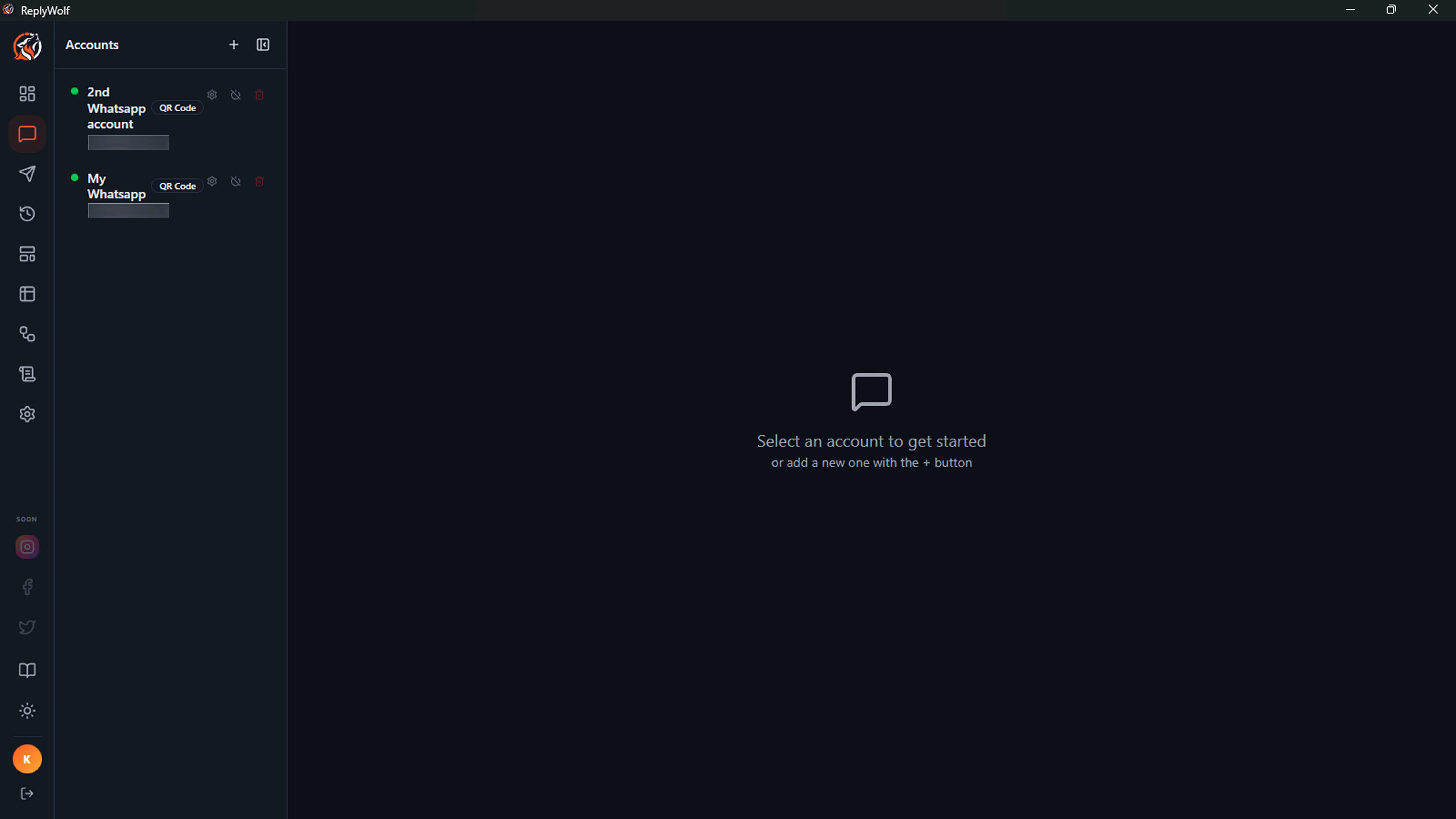
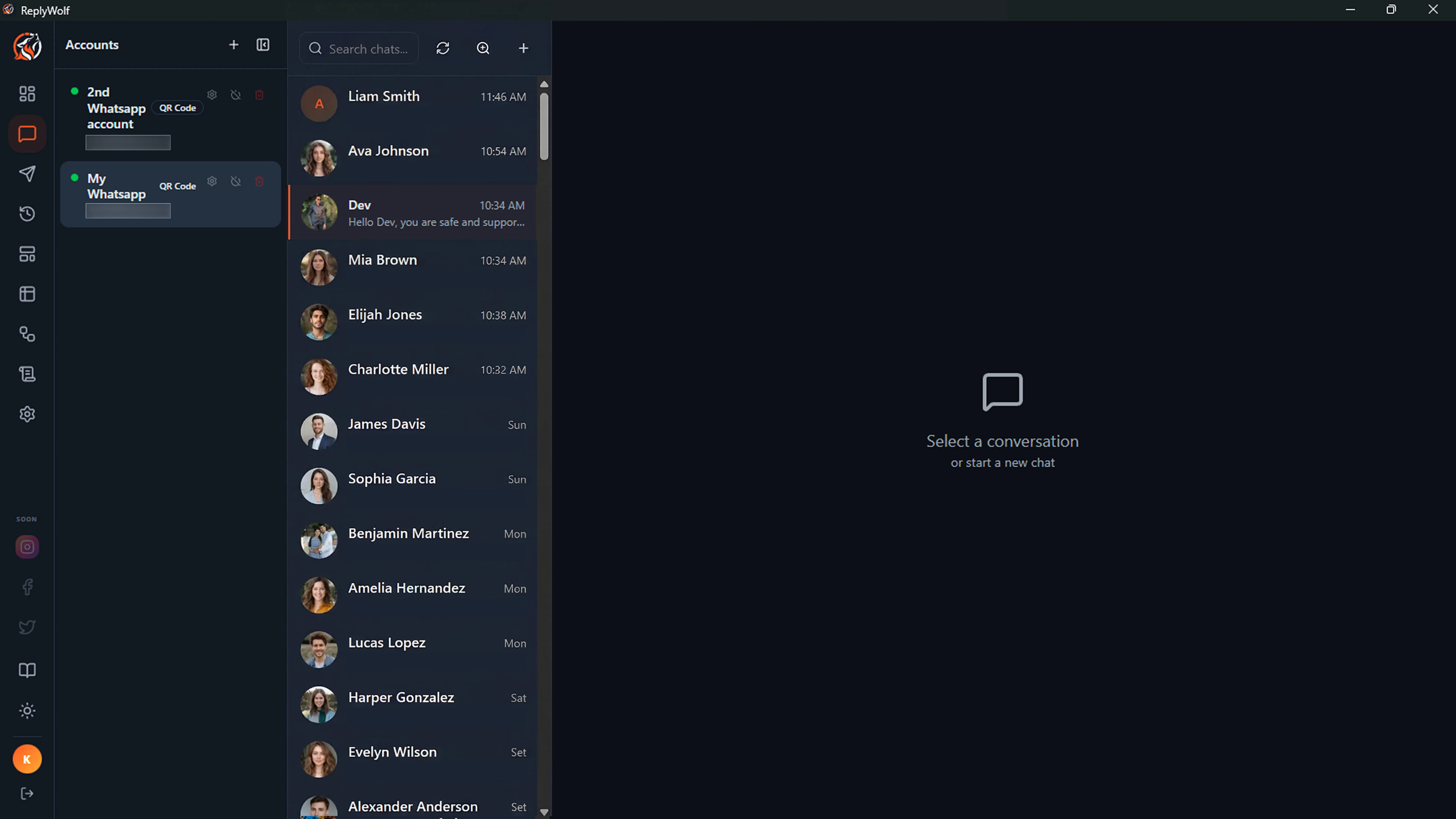
The left panel shows all your WhatsApp conversations. Each conversation displays:
- The contact's name (or phone number if no name is saved)
- A preview of the last message
- A timestamp showing when the last message was sent
- An unread count badge in orange if there are unread messages
- Colored label dots next to the name if you have assigned any labels
You can search conversations by name or phone number using the search bar at the top.
Starting a New Chat
Click the + button in the conversation list header to start a new chat. Enter the phone number (with country code) of the contact you want to message.
Refreshing Conversations
Click the refresh button to sync your conversation list with WhatsApp.
Chat View
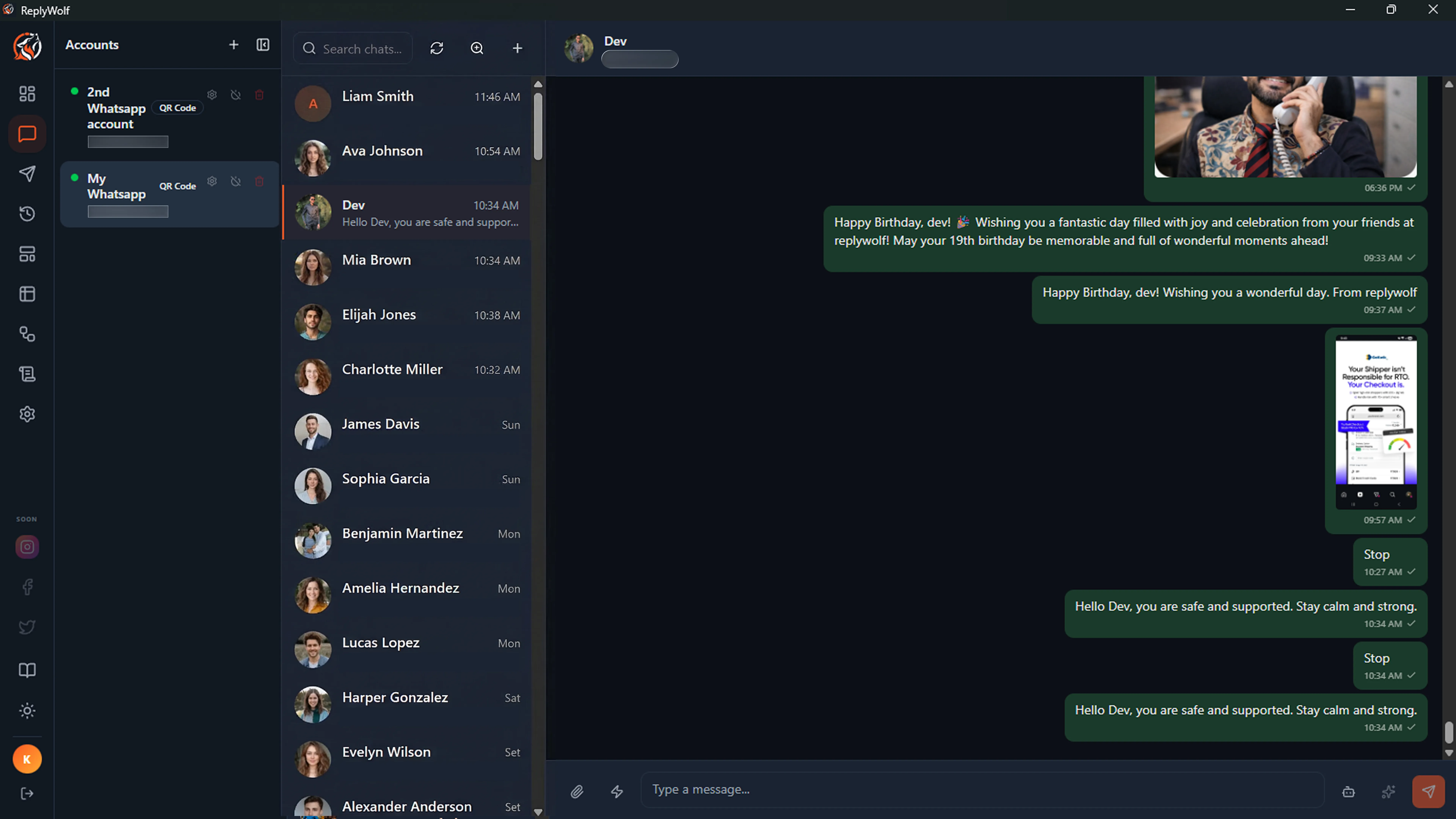
Selecting a conversation opens the full message history on the right side. Messages are shown in chat bubbles -- outgoing messages on the right, incoming messages on the left.
Each message shows:
- The message text
- A timestamp
- Delivery status for outgoing messages (sent, delivered, read, or failed)
- Media previews for images, videos, stickers, and documents
Sending Messages
Type your message in the input area at the bottom and press Enter to send (or click the send button). Use Shift + Enter to add a new line without sending.
You can also:
- Attach files -- Click the paperclip icon to send images, videos, audio, or documents.
- Use quick replies -- Click the lightning bolt icon to pick from your saved quick replies. Quick replies can include image attachments -- replies with an image show a small thumbnail in the picker. You can manage your quick replies from the same menu.
- AI Suggest -- Click the robot icon to have AI generate a reply based on the conversation context.
- AI Improve -- Type a draft, then click the sparkle icon to have AI polish your message before sending.
Template Messages (Cloud API)
If you are using a Cloud API account, you will see a template icon in the input area. Click it to send an approved WhatsApp template message. This is useful for starting conversations with contacts who have not messaged you in the last 24 hours, since the Cloud API requires templates for initiating chats outside the 24-hour messaging window.
Contact Profile
Click on a contact's avatar in the chat header to view their profile information.
Forwarding Messages
Hover over any message to reveal a forward button. Click it to forward that message to another conversation.
Media
Incoming media (images, videos, audio, documents) appear as previews in the chat. You can:
- Download media -- Click the download icon on undownloaded media to save it locally.
- Open media -- Click an image or document to open it with your system's default viewer.
- Save As -- Hover over downloaded media to reveal a "Save" button that lets you save the file to a location you choose.
Labels
Labels let you tag conversations with color-coded markers for organization -- for example, "VIP", "Lead", "Support", or anything you like.
Assigning Labels
Click the tag icon in the chat header to open the label picker. Check or uncheck labels to assign or remove them from the current conversation. Assigned labels appear as colored dots next to the contact name in the conversation list.
Managing Labels
From the label picker, click Manage Labels to create, edit, or delete labels. Each label has a name and a color. There are 10 preset colors to choose from.
Quick Replies
Quick replies let you save commonly used messages for fast access during chats.
Managing Quick Replies
Click the lightning bolt icon in the chat input, then click Manage Quick Replies. From here you can create, edit, and delete quick replies.
Each quick reply has:
- Title -- A short name to identify it
- Body -- The message text
- Shortcut -- An optional keyboard shortcut
- Image attachment -- Optionally attach an image (JPG, PNG, GIF, or WebP) to the quick reply. Click Attach Image to pick a file, and a thumbnail preview appears. Click the X to remove it.
Using Quick Replies
Click the lightning bolt icon in the chat input to open the quick reply picker. Replies with an image show a small thumbnail next to the text. Selecting a reply inserts the text (and sends the image if one is attached).
Message Search
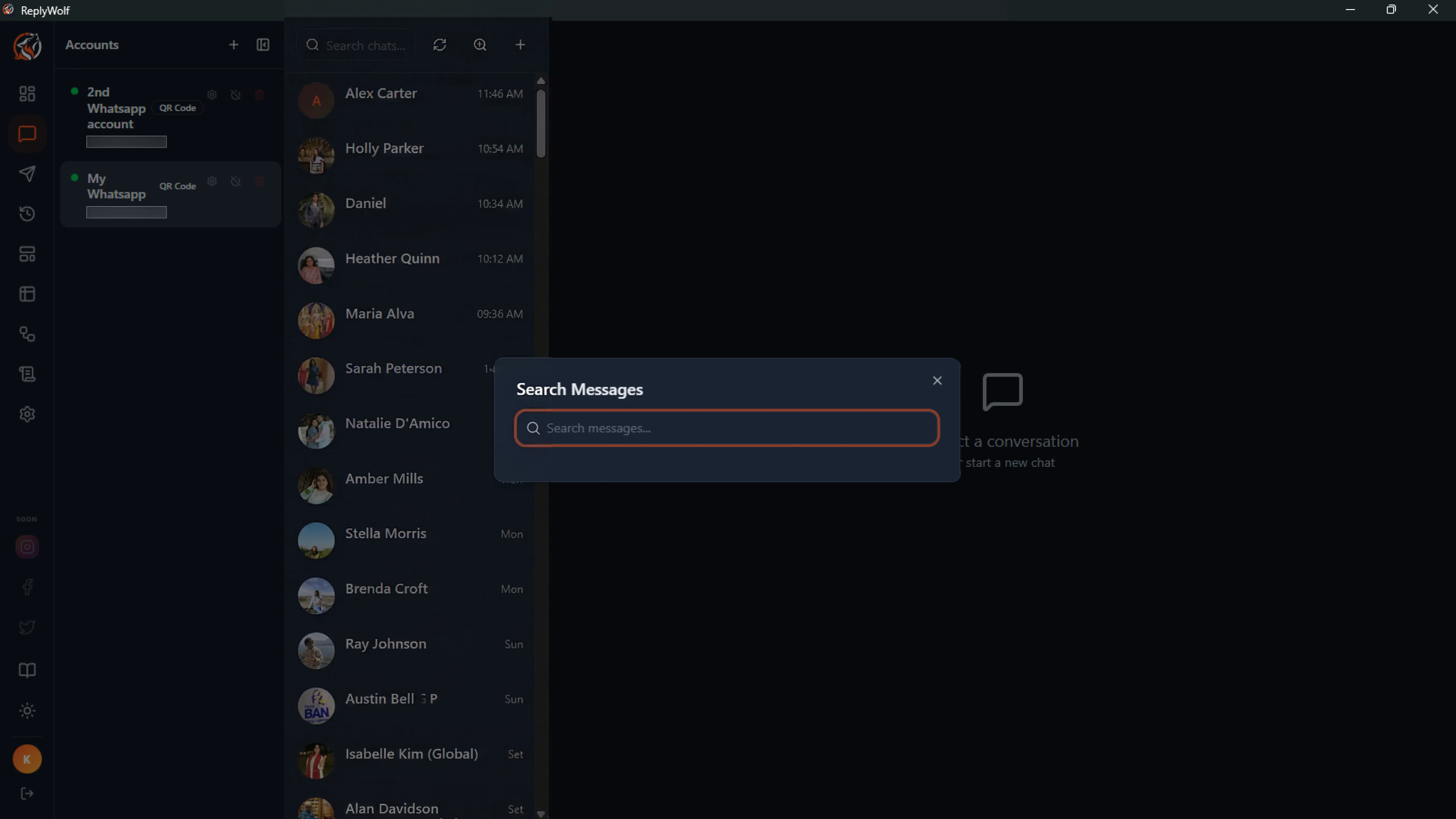
Click the search icon (with a checkmark) in the conversation list header to open the Search Messages dialog. This searches across all conversations, not just the currently selected one.
Type at least 2 characters to start searching. Results show the contact name, a snippet of the matching message with the search term highlighted, and the date. Click a result to jump to that conversation.
Opt-Out Indicator
If a contact has opted out of receiving messages, an indicator is shown so you know not to message them.