AI Generate Reply
The AI Generate Reply node uses your configured AI provider to generate text. Give it instructions and context, and it writes a reply for you. This is the core node for building AI-powered conversations.
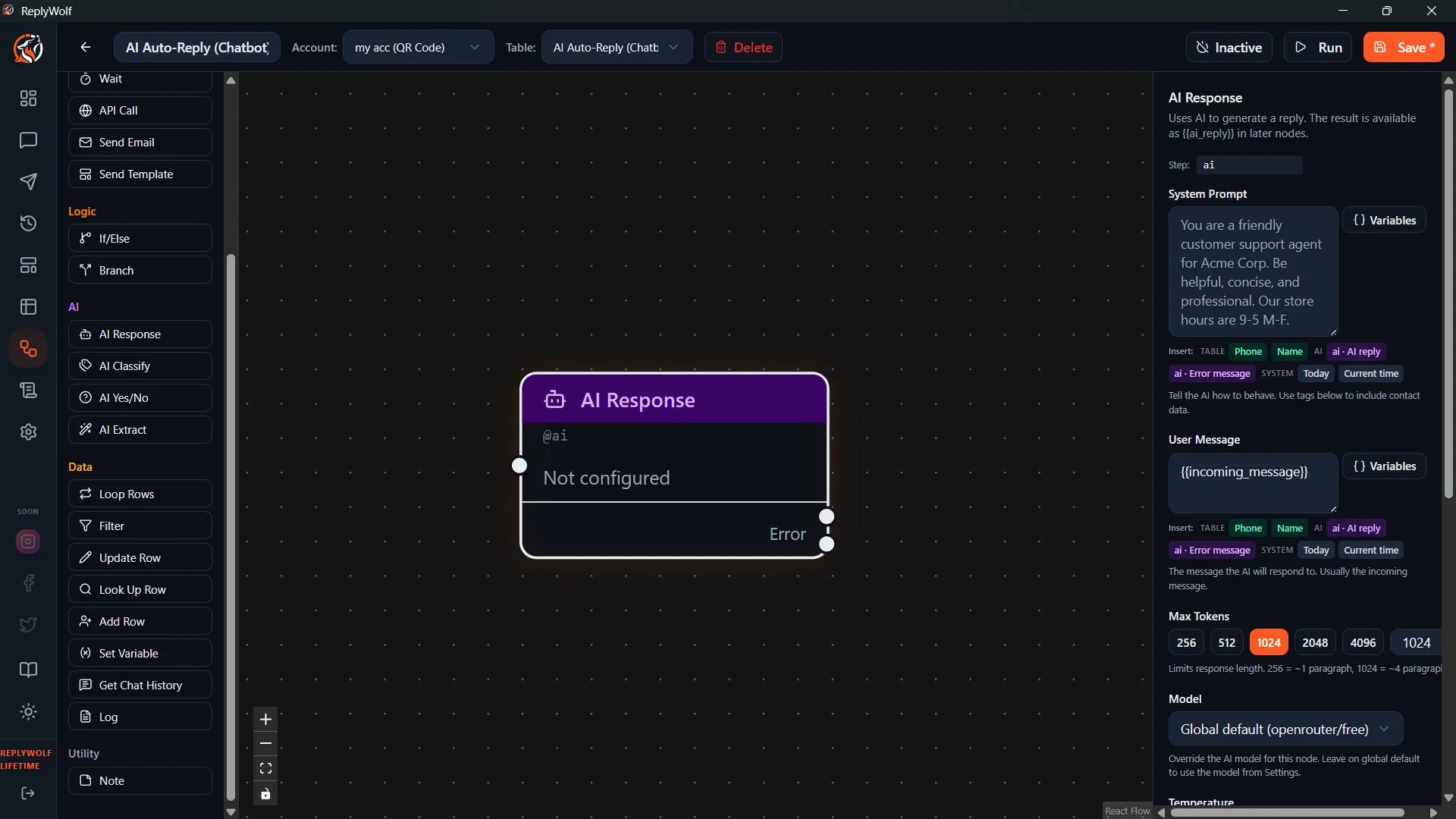
Configuration
System Prompt
This sets the AI's personality and ground rules. Think of it as the instructions you'd give a new employee on their first day.
Example:
You are a helpful assistant for ABC Clinic. Keep responses short and friendly. Always include the clinic phone number 555-1234.
User Prompt
This is the actual request you're sending to the AI. It supports {{variables}}, so you can inject contact data, message content, and chat history.
Example:
Customer {{name}} sent: {{incoming_message}}
Previous conversation: {{chat_history}}
Write a helpful reply.
Max Tokens
Limits how long the AI's response can be. The default is around 500 tokens (roughly a few paragraphs). Lower this if you want shorter replies.
Temperature
Controls how creative or predictable the AI is:
- 0 — Deterministic and consistent. The AI gives the same answer every time for the same input.
- 0.7+ — More creative and varied. Good for casual conversations where you want natural-sounding variety.
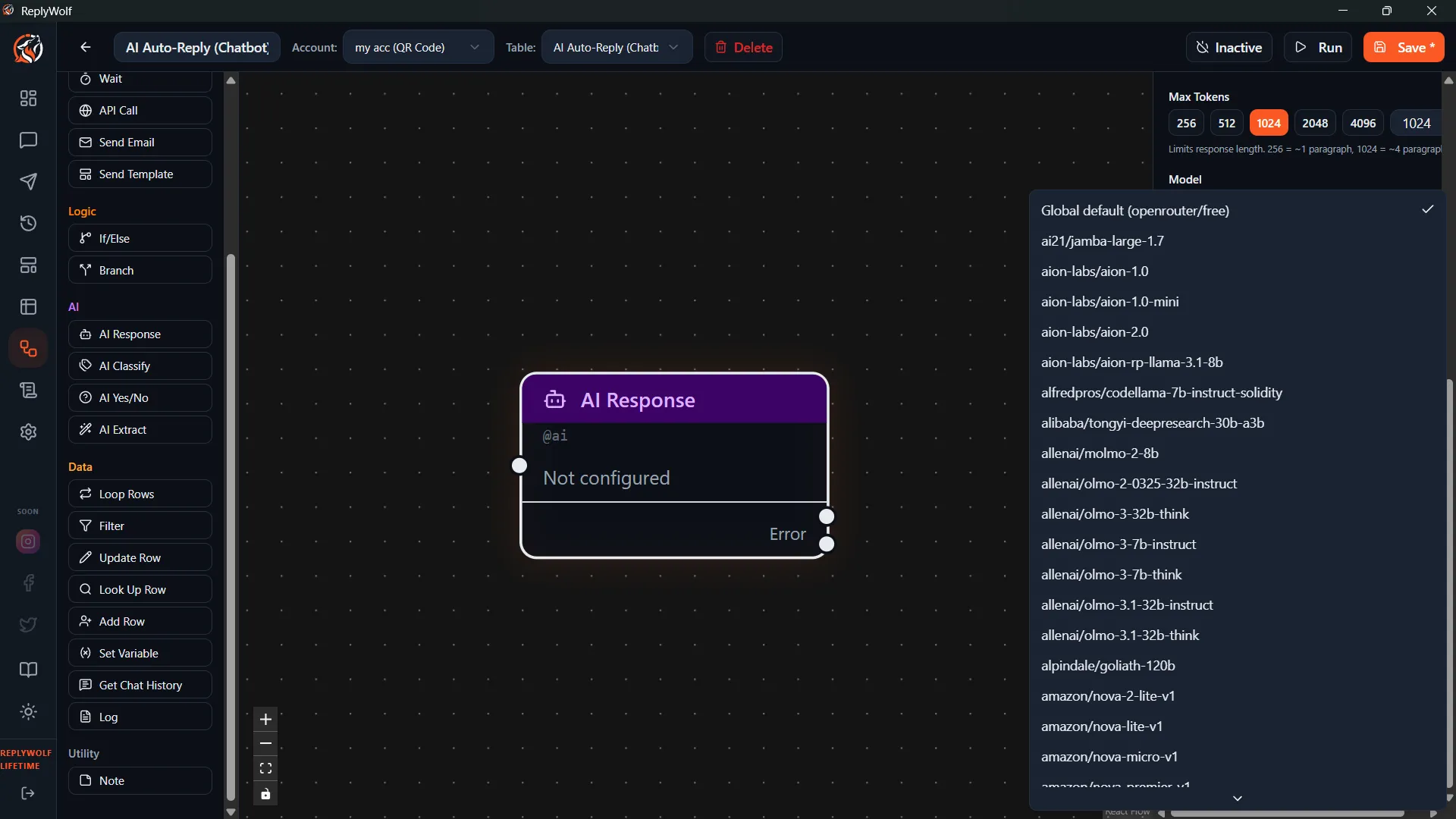
Model
By default, this node uses whichever model you've set in Settings. You can override it here if you want a specific node to use a different model (for example, a faster model for simple tasks or a more capable one for complex replies).
Output
The generated text is available as {{ai_reply}} for any downstream nodes. You'll typically connect this to a Send Reply or Send Message node.
Requirements
You need an AI provider configured in Settings before this node will work. See the AI Setup page for setup instructions.
Error Handling
If the AI call fails (network issues, rate limits, etc.), the node automatically retries up to 3 times with exponential backoff. This means it waits a little longer between each retry, giving the API time to recover.
Tips
- Keep your system prompt focused. Tell the AI what it is, what it should do, and what it should never do.
- Use
{{chat_history}}in your user prompt so the AI has context about the conversation. Pair this with the Get Chat Messages node upstream. - Start with temperature 0 while testing, then increase it once you're happy with the results.