AI Provider Settings
This is where you configure which AI service ReplyWolf uses for smart replies, classification, conditions, and data extraction in your flows.
How to Configure
- Go to Settings from the sidebar.
- Find the AI Provider section.
- Fill in the fields described below.
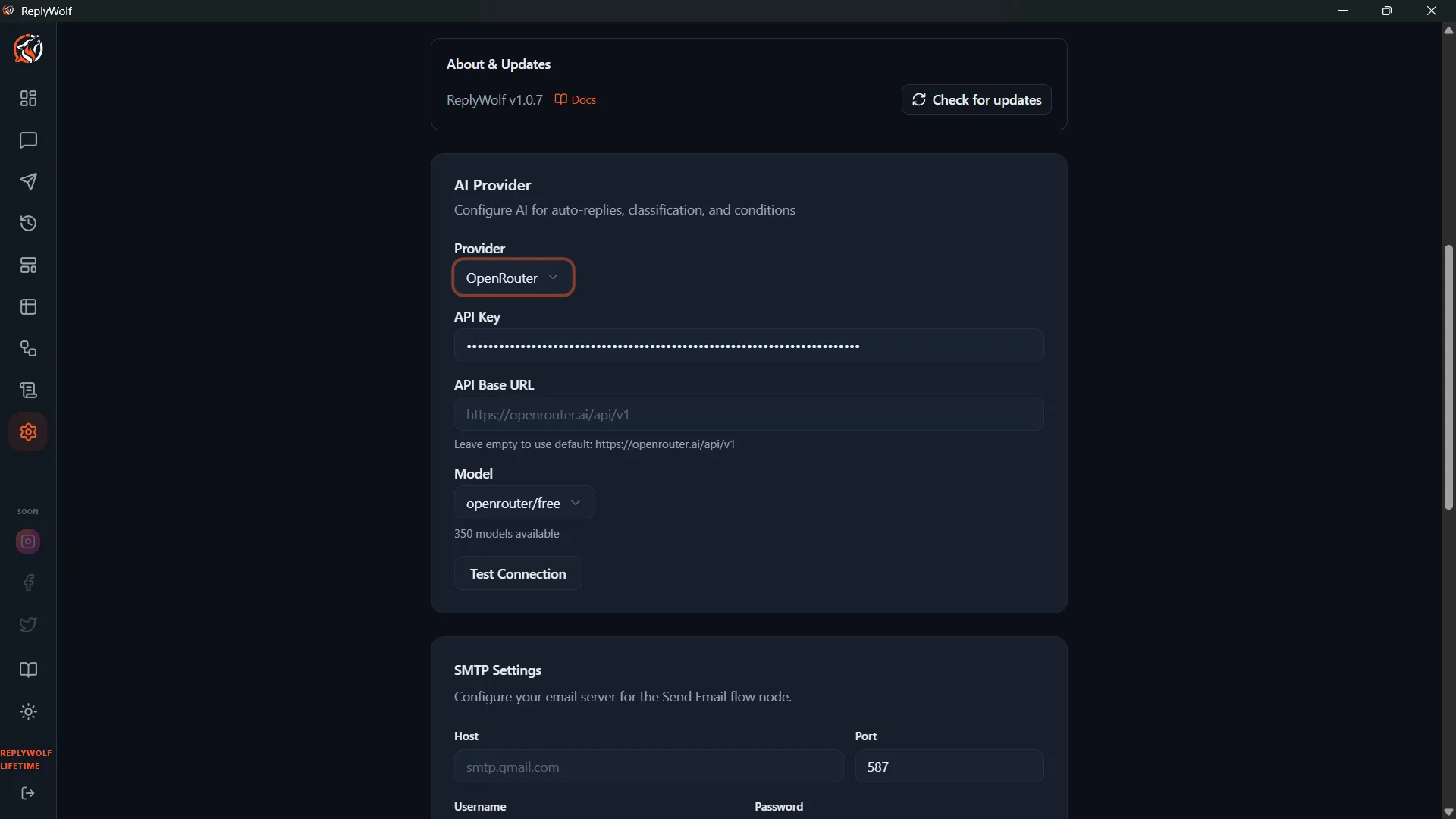
Configuration Fields
Provider
Select your AI provider from the dropdown. Options include OpenAI, Anthropic, Google Gemini, Groq, DeepSeek, Kimi (Moonshot), OpenRouter, and Custom.
See Supported AI Providers for a full list of models and where to get API keys.
API Key
Paste the API key from your chosen provider. This key is stored locally on your computer and is never sent to ReplyWolf's servers.
Model
Once you select a provider and enter a valid API key, the model list updates automatically to show available models. Pick the one you want to use as your default, or leave it on the recommended model.
Custom Provider
If you choose Custom as your provider, an additional Base URL field appears. Enter the URL of any OpenAI-compatible API endpoint (e.g., http://localhost:11434/v1 for a local Ollama instance). Then enter your API key and select a model.
Per-Node Model Override
The model you set here is the default for all AI nodes in your flows. However, individual AI nodes (like AI Generate Reply, AI Classify, AI Condition, and AI Extract) can override this and use a different model. This is useful if you want to use a cheaper model for simple tasks and a more capable model for complex ones.