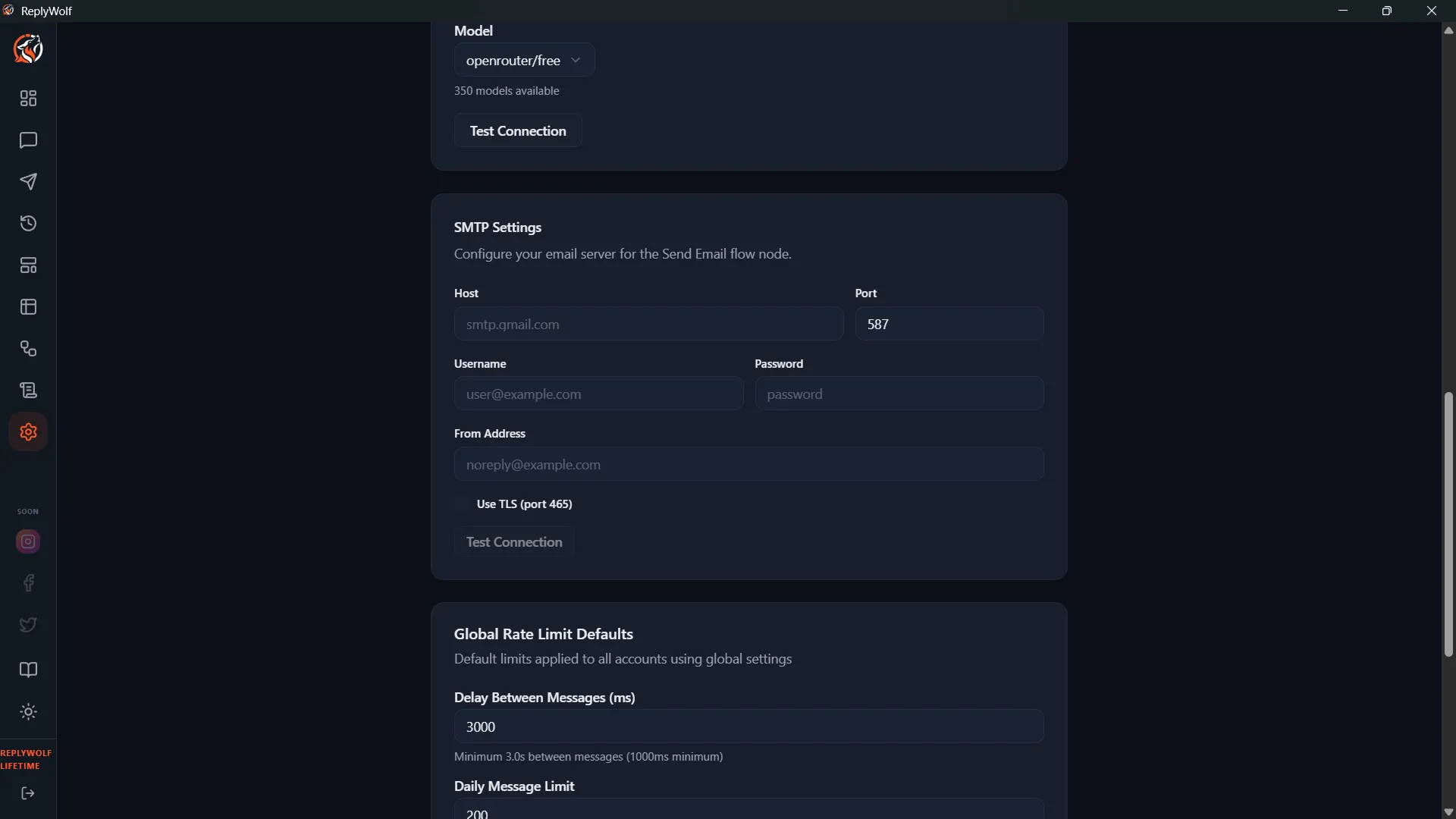
Email (SMTP) Settings
If you want to use the Send Email action node in your flows, you need to configure an SMTP server here. This lets ReplyWolf send emails as part of your automation workflows — for example, forwarding important customer messages to your inbox or sending notifications to your team.
Configuration Fields
| Field | Description |
|---|---|
| SMTP Host | The address of your email server |
| Port | The port number (usually 587 for TLS) |
| Username | Your email account username (usually your email address) |
| Password | Your email account password or app-specific password |
| From Address | The email address that appears in the "From" field |
Common Setups
Gmail
| Field | Value |
|---|---|
| SMTP Host | smtp.gmail.com |
| Port | 587 |
| Username | Your Gmail address |
| Password | Your App Password (not your regular Gmail password) |
| From Address | Your Gmail address |
Important: Gmail requires an App Password instead of your regular password. To create one, go to your Google Account settings, navigate to Security, and generate an App Password under "2-Step Verification." Your normal Gmail password will not work.
Outlook / Office 365
| Field | Value |
|---|---|
| SMTP Host | smtp.office365.com |
| Port | 587 |
| Username | Your Outlook email address |
| Password | Your Outlook password |
| From Address | Your Outlook email address |
Custom SMTP Server
Use whatever host, port, username, and password your email provider gives you. Check your provider's documentation for the correct SMTP settings.
Testing Your Setup
The best way to verify your email settings work:
- Create a simple flow with any trigger.
- Add a Send Email node.
- Set the recipient to your own email address.
- Activate the flow and trigger it.
- Check your inbox for the test email.
If the email doesn't arrive, check the flow's execution logs for error messages — they'll usually tell you exactly what went wrong (wrong password, connection refused, etc.).