Fetch Contact
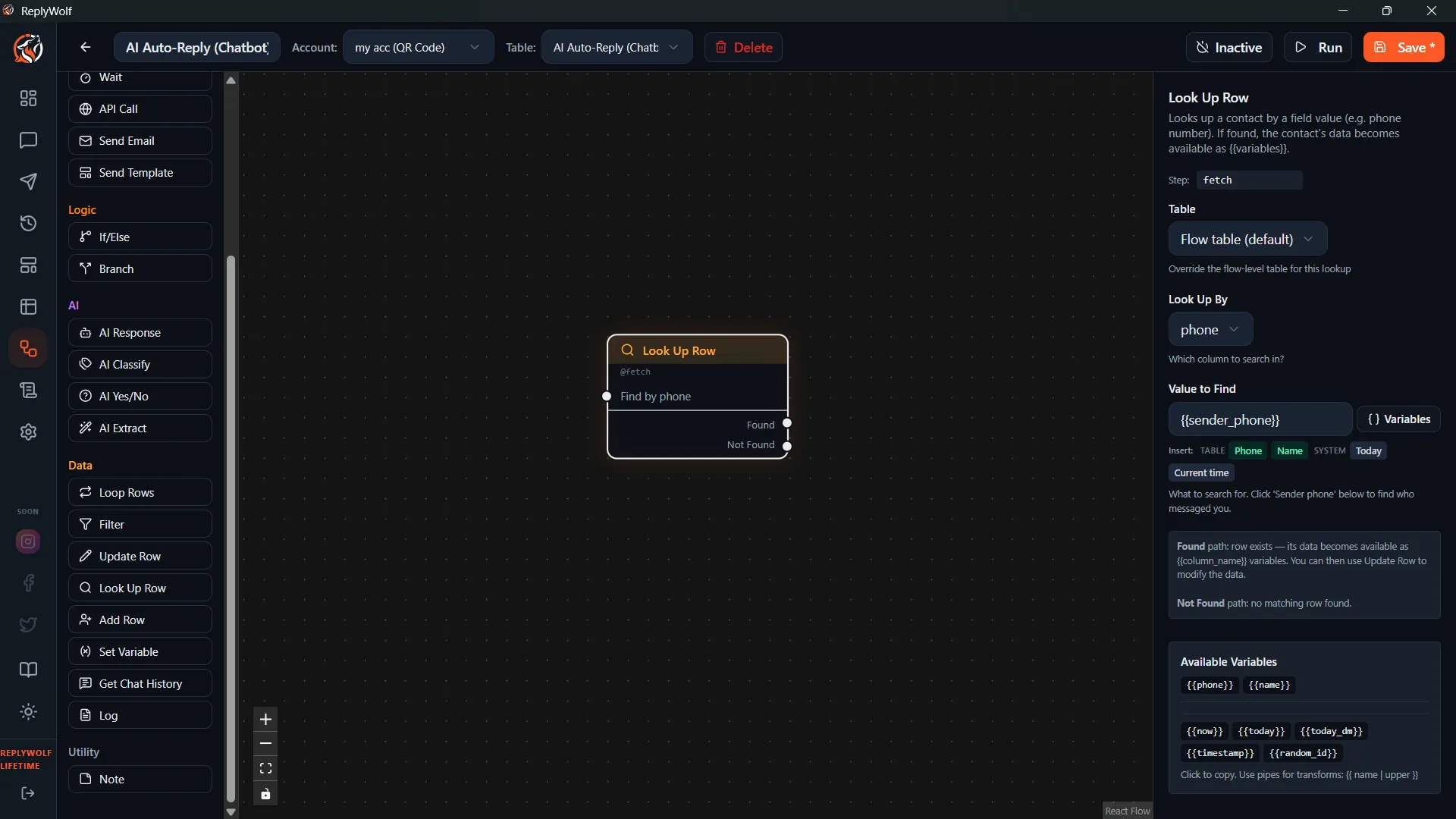
The Fetch Contact node looks up a contact in a table by matching a field value. If the contact is found, it becomes the current contact for the rest of the flow.
How It Works
- You select which table to search.
- You pick a field to search by (e.g.,
phone,email,customer_id). - You provide the value to match (supports
{{variables}}). - The node looks for a contact where that field matches.
Configuration
- Table — which table to search
- Field — which column to match against
- Value — the value to search for (supports
{{variables}})
Output Handles
- Found — a matching contact was found. That contact is now loaded as the current contact, and all their fields are available as
{{fieldName}}variables. - Not Found — no contact matched the search.
Connect different flow paths to each handle.
Use Cases
Look Up an Incoming Caller
When a new message arrives, use {{sender_phone}} to search your contacts table by the phone field. If found, you can greet them by name. If not found, route to a Create Contact node.
Check if a Lead Already Exists
Before creating a new contact, search by email or phone to avoid duplicates. Only create a new record if the "Not Found" handle fires.
Cross-reference Between Tables
If you have separate tables for leads and customers, you can fetch from one table during a flow that was triggered by data in another.
Tips
- The search returns the first matching contact. If multiple contacts share the same value in the search field, only the first one is loaded.
- Use this node with incoming message triggers to connect anonymous messages to existing contact records.
- Chain this with Create Contact on the "Not Found" path to automatically add new contacts when they message you for the first time.