Update Contact
The Update Contact node changes the current contact's data in the table. Use it to track state, count actions, or record results from earlier nodes in the flow.
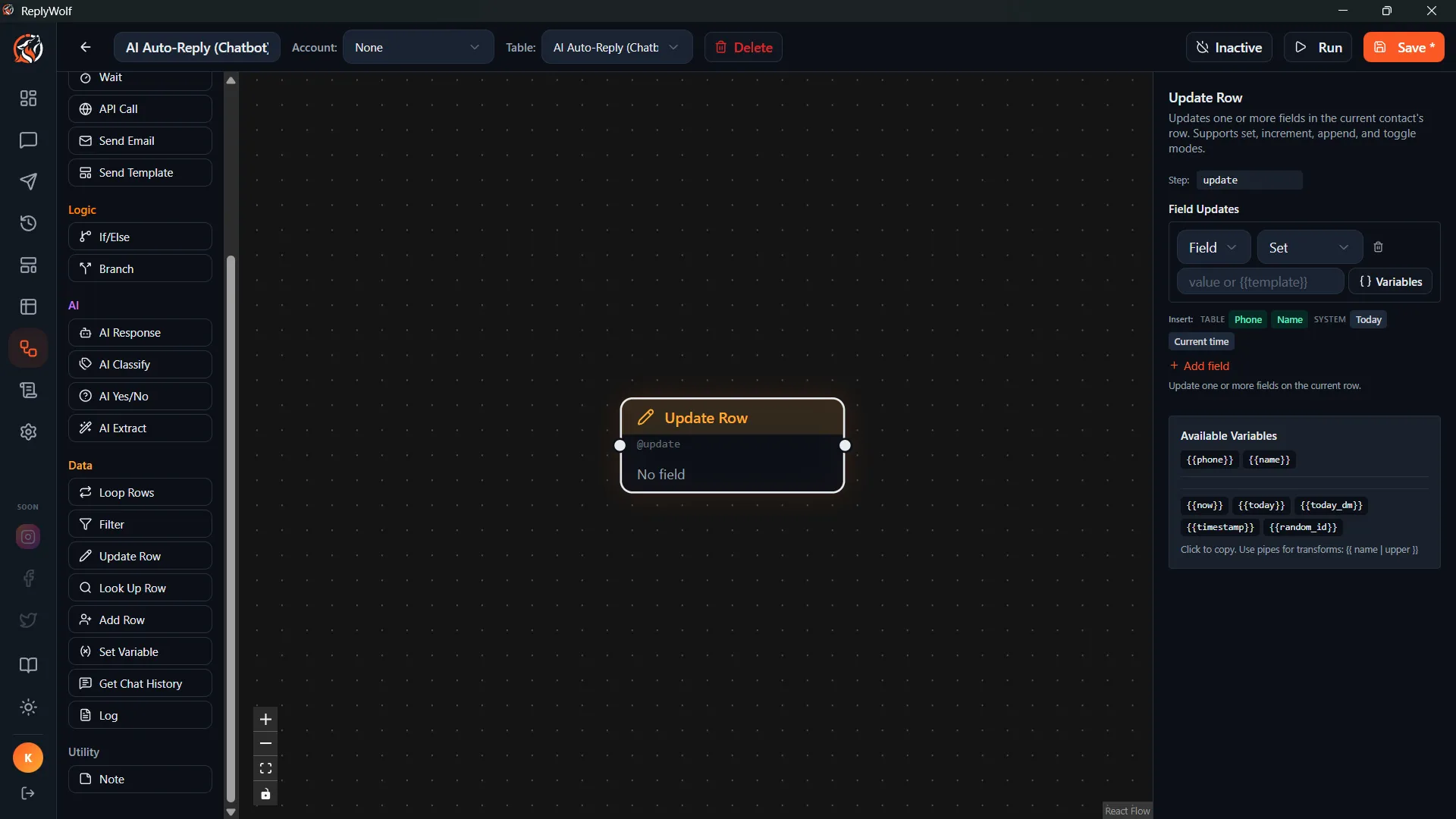
Configuration
You define a list of field assignments. Each assignment has a field name, a mode, and a value.
Modes
| Mode | What it does | Example |
|---|---|---|
| set | Replaces the field value entirely | Set status to "contacted" |
| increment | Adds a number to the current value | Increment follow_up_count by 1 |
| append | Adds text to the end of the existing value | Append ", called on 2024-01-15" to notes |
| toggle | Flips a boolean value (true becomes false, false becomes true) | Toggle is_active |
You can include multiple assignments in a single node. They all apply to the same contact.
Use Cases
Mark Contacts as Sent
After sending a message, set last_contacted to today's date and status to "contacted".
Count Follow-ups
Each time your flow sends a follow-up message, increment follow_up_count by 1. Later, use an If/Else node to stop following up after 3 attempts.
Update Status After Classification
After an AI Classify node sorts a message into a category, set the contact's category field to {{classification}}.
Track AI Responses
After an AI Generate Reply node, append {{ai_reply}} to a response_log field to keep a history.
Tips
- The increment mode is great for counters. You don't need to read the current value first — it adds to whatever is already there.
- The toggle mode only works on boolean (true/false) fields.
- Field values support
{{variables}}, so you can save outputs from AI nodes or other data into contact fields.